
Learning how to download public Instagram Reels in HD is useful when you want to watch a creator’s public video offline, save your own published content, or keep an authorized copy for a presentation or editing workflow. The process is usually simple, but the final quality depends on the original Reel, the URL you copy, and the downloader you use.
This guide explains how to copy a public Reel link, download it through a browser-based tool, check whether the result is genuinely high definition, and solve common errors. It also covers copyright, privacy, and why a public Reel is not automatically free to reuse.
What “HD” means for an Instagram Reel
HD refers to the resolution and visual quality of the downloaded video. A downloader cannot create detail that was never present in the source file. If a Reel was uploaded in a compressed or low-resolution format, selecting an HD option may only preserve the available quality rather than produce a sharper video.
Other factors affect the result as well:
- Original upload quality: A high-resolution source generally produces a cleaner download.
- Instagram processing: Social platforms often recompress uploaded videos.
- Downloader processing: Some services may offer the source stream, while others may convert or compress it.
- Playback software: A video can look soft because of the media player, display scaling, or a slow connection.
For the best result, use the original file whenever you own the Reel. For someone else’s public content, download only when you have permission or a legitimate reason to keep a personal copy.
Before you download a public Reel
Prepare the correct link before opening a downloader. The URL should point to the individual Reel, not just the creator’s profile, a hashtag page, or an Instagram search result.
- Open Instagram and locate the public Reel.
- Tap or click the Share button.
- Select Copy link.
- Check that the copied address refers to the specific Reel.
- Keep the Instagram app or browser tab available in case you need to verify the source.
Do not share passwords, authentication codes, browser cookies, or session files with a downloader. A public Reel link should normally be enough for an authorized public-media workflow. If a site asks for your Instagram login to download an ordinary public Reel, treat that as a warning sign.
How to download public Instagram Reels in HD
Step 1: Copy the Reel URL
On a phone, open the Reel, tap the paper-plane share icon, and choose Copy link. On a desktop browser, open the Reel and copy the address from the browser’s address bar, or use Instagram’s share menu if it is available.
Take a moment to confirm that the link is not a shortened or incomplete address. If you copied a profile URL by mistake, return to the specific video and repeat the process.
Step 2: Open a browser-based Instagram downloader
Use a reputable browser tool designed for public Instagram video URLs. SaveRapido’s Instagram video downloader is designed for this type of public-media workflow, so you can use it without installing an unknown desktop application.
Paste the Reel URL into the input field. Review the page before continuing and make sure the address is correct. Avoid unrelated pop-ups, browser notifications, or download buttons that do not clearly belong to the tool.
Step 3: Select the available quality
If the tool displays more than one format or quality, choose the highest available video option when you need the clearest copy. The label may refer to resolution, quality, or file format. If only one option appears, the service may be offering the available public video stream without additional choices.
Remember that “HD” is not a guarantee that the source was recorded or uploaded in a particular resolution. After downloading, inspect the file rather than relying only on the label.
Step 4: Download and locate the file
Start the download and wait for the browser to finish. On most devices, the file will appear in the default Downloads folder unless your browser is configured to ask for a location.
Give the file a useful name, such as the creator name and date, if you are keeping several authorized clips. Avoid removing attribution or confusing someone else’s work with your own.
Step 5: Check the downloaded video
Open the file in your normal media player. Check the image at full size, listen for audio problems, and confirm that the video plays from beginning to end. You can also inspect the file properties to see its resolution, duration, and file size.
A vertical Reel may have a portrait-oriented resolution rather than a landscape format. That is normal. Do not stretch it to fill a wide screen, because stretching can make the video look blurry or distorted.
Phone and desktop workflows
Downloading on Android or iPhone
The easiest mobile method is to copy the Reel link in the Instagram app, open your mobile browser, and paste the link into the downloader. When the file is ready, use the browser’s download control or share menu to save it to your device, depending on the options shown by your operating system.
On iPhone, a downloaded file may initially appear in the Files app rather than the Photos app. You may need to open the file and use the share menu to save it to Photos. On Android, the file commonly appears in Downloads or a browser-specific folder, but the exact location depends on your device and browser settings.
Downloading on Windows, macOS, or Linux
On a computer, copy the Reel URL, open the downloader in a browser, paste the link, and save the resulting video. Desktop browsers make it easier to inspect file properties, rename files, organize folders, and move clips into an authorized editing project.
If the downloaded file opens in a media player but does not import into your editor, check the file type and codec support. Do not immediately convert the file repeatedly, because each unnecessary conversion can reduce quality.
How to preserve the best possible quality
- Start with the original link: Avoid downloading a screen recording or a repost when the original public Reel is available.
- Choose the highest available option: Select the best quality offered by the downloader, but do not assume it can improve a low-quality source.
- Avoid screenshots and screen recordings: These methods often reduce sharpness and may capture interface elements or notifications.
- Do not send the file through unnecessary messaging apps: Some apps compress videos during sharing.
- Keep the original download: Make editing copies rather than overwriting the first file.
- Use a stable connection: An interrupted download can create an incomplete or corrupted file.
- Check storage space: High-quality video files require more room than short, heavily compressed clips.
If you plan to edit the Reel, preserve its original aspect ratio and frame orientation. Exporting a vertical video into a landscape project can introduce black bars, cropping, or unwanted stretching. A non-destructive editing workflow helps you return to the original file if an export goes wrong.
Public does not mean free to reuse

A public Instagram Reel can be visible to anyone while still being protected by copyright. Downloading a copy for personal reference is different from reposting it, placing it in an advertisement, using it in a client project, or uploading it to another platform.
Before reusing a Reel, consider whether you have permission from the rights holder and whether the creator used music, footage, images, or other material owned by someone else. Permission from the person who posted a video may not cover every element inside it.
Respect Instagram’s terms, the creator’s instructions, and applicable copyright and privacy laws. Do not use a downloader to access private content, bypass login requirements, evade access controls, or collect personal information. If the creator asks you not to save or redistribute a video, honor that request.
Common problems and practical fixes
The downloader says the link is invalid
Copy the link again from the individual Reel. A profile link, an expired redirect, or text copied with extra characters can prevent a tool from recognizing the address. You can also try opening the link in a browser first to confirm that it points to a public post.
The video has no sound
First check whether the original Reel has audible audio. Some music or audio may be limited by region, licensing, or platform availability. If the original plays with sound but the downloaded file does not, try the download again using the same public URL and inspect the result with another media player.
The video looks blurry
Confirm the source quality and the downloaded file’s resolution. A blurry result may come from a low-resolution original, platform compression, a lower-quality option, or a player displaying the video at an enlarged size. Downloading the same file repeatedly will not add missing detail.
The download button does not work
Check your internet connection, disable an accidental browser zoom issue, and try a current browser with JavaScript and normal download permissions enabled. If a new tab opens, verify that it is the expected file or tool page before interacting with it. Avoid installing extensions or applications simply because a pop-up requests them.
The file will not open
Download the file again and check whether the browser saved a complete file rather than an HTML page with a video-like name. If the file opens on one device but not another, the issue may be media-player or codec support. Use a trusted media player or convert the file only when you have permission to process the video.
Browser safety and privacy checklist
Public-media tools can be useful, but you should still treat unfamiliar websites carefully. Use the following checks:
- Do not enter Instagram usernames, passwords, one-time codes, or recovery details.
- Do not upload private videos or personal documents to a public downloader.
- Check the browser address before clicking a download control.
- Decline unnecessary notification permissions.
- Do not install an extension or executable file just to save one public Reel.
- Scan unexpected downloads with your device’s security tools.
- Keep downloaded media organized and remove files you no longer need.
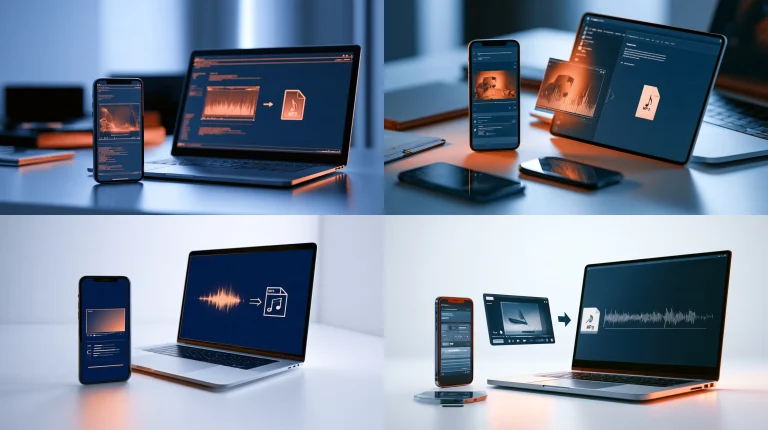
These precautions apply to other browser-based media workflows too, including converting a permitted video to audio. If you use SaveRapido’s video-to-MP3 tool, confirm that you own or are authorized to process the source content and that an audio-only copy is appropriate for your use.
When a downloader is not the right option
If you own the Reel, the original project file or camera roll copy is usually better than downloading the version processed by Instagram. It will normally preserve more editing flexibility and may contain higher-quality audio or video.
If you only want to remember a Reel, Instagram’s save feature may be more appropriate than downloading it. Saving the post keeps it available in your account without creating another copy, although availability can change if the creator removes the Reel or changes its visibility.
For professional reuse, ask the creator for the original file and written permission. That approach is clearer than relying on a downloaded social-media copy and helps preserve proper credit.
Frequently Asked Questions
Can I download any public Instagram Reel in HD?
You may be able to download an accessible public Reel through a compatible browser tool, but the available quality depends on the source and the tool. A public post is not a guarantee of a full-resolution original, and you should only save or reuse content when authorized.
Will downloading a Reel notify the creator?
Notification behavior can change with platform features and workflows. Do not assume that downloading is private or that the creator will never know. More importantly, follow the creator’s preferences and obtain permission when you plan to reuse the video.
Why is my HD download still not sharp?
The original Reel may have been uploaded at a lower resolution or compressed by Instagram. The downloader may also provide the highest available stream rather than the original camera file. Check the file properties and compare the result with the Reel as it appears on Instagram.
Can I download a Reel without installing an app?
A browser-based workflow can avoid installing an additional app. Copy the public Reel URL, open a reputable web tool, paste the link, and save the resulting file. Avoid sites that require sensitive account credentials or suspicious software.
Can I repost a downloaded Reel?
Not automatically. Reposting may require permission from the copyright holder and may involve music, third-party footage, privacy, or platform-policy concerns. Ask for permission, keep credit intact, and use the video only within the rights you have been granted.
What should I do if the Reel becomes private?
Do not try to bypass the new privacy setting or use cookies and account credentials to access it. If you were authorized to keep a copy, use the file you already obtained. Otherwise, ask the creator for a permitted copy.
Final thoughts
The safest way to learn how to download public Instagram Reels in HD is to use the specific public Reel URL, select the highest available quality, verify the resulting file, and keep your use within the creator’s permissions. SaveRapido can make the browser portion of that workflow straightforward, while careful source checking and privacy habits protect both you and the creator.
For occasional personal or authorized creator work, a clean download-and-check process is usually all you need. When the project matters professionally, request the original file and written permission instead of relying only on a social-media download.
Ready to use SaveRapido?
Open the matching downloader, paste a supported public URL, and choose an available format.