People often want to convert public social media video to MP3 when a useful interview, lecture, music performance, podcast clip, or spoken tutorial is easier to listen to than watch. The challenge is finding a practical workflow that produces a clean audio file without exposing your account, installing questionable software, or ignoring the creator’s rights.
This guide explains how to convert public social media video to MP3 for content you own, have permission to save, or are otherwise authorized to use. You will learn how browser-based tools work, when a desktop converter makes more sense, which audio settings to choose, and how to diagnose common failures.
What converting a public video to MP3 actually involves
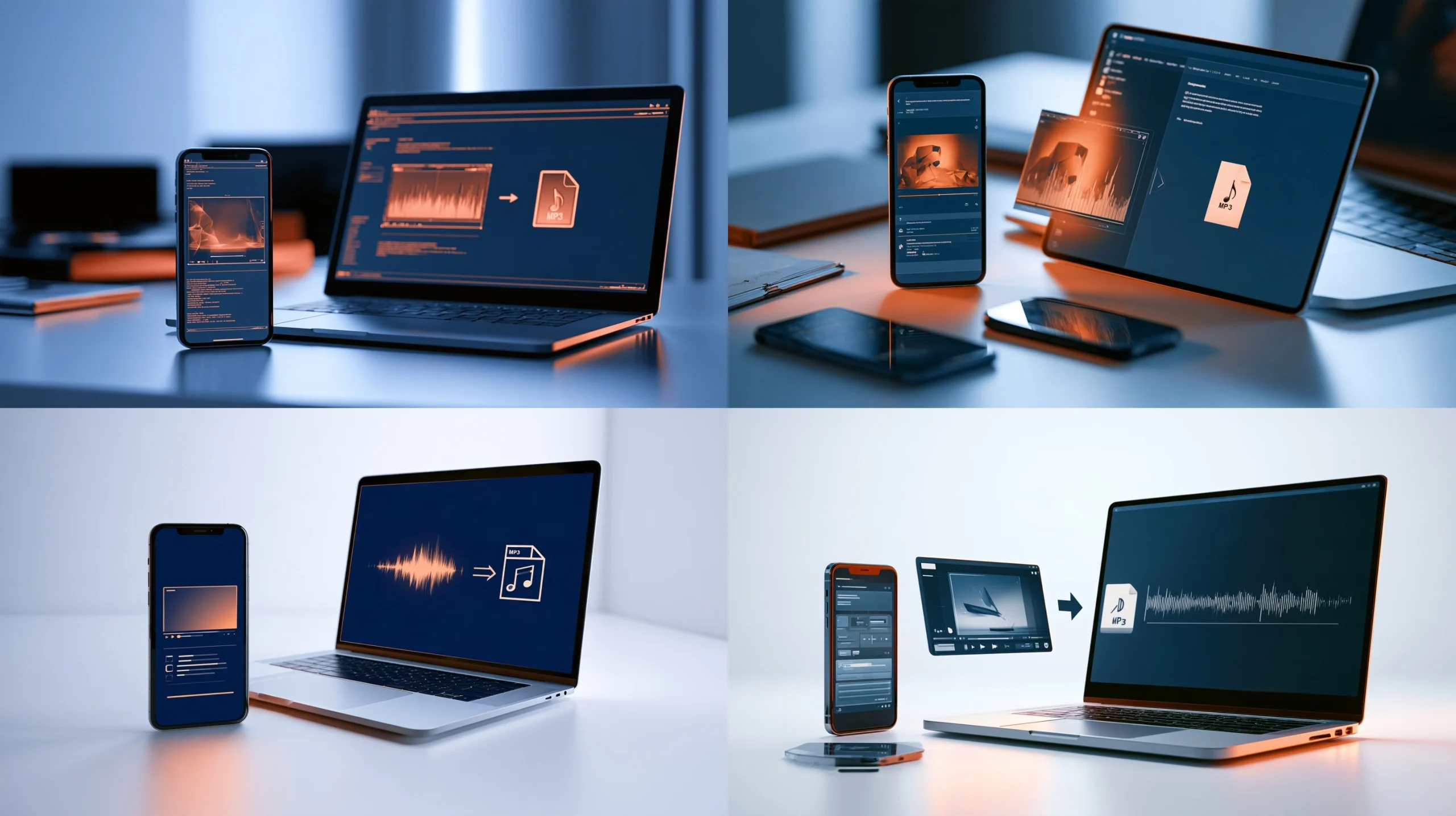
A social media video usually contains a video stream, an audio stream, or both. Converting it to MP3 means obtaining an authorized copy of the public media and extracting or transcoding its audio into the MP3 format.
These are two separate stages:
- Source retrieval: The tool reads a public video URL and prepares the media for download, when the platform and content permit that action.
- Audio conversion: The video’s audio is saved or transcoded into an MP3 file that works with common phones, computers, cars, and audio players.
Changing the file format does not change ownership or licensing. A video being visible to everyone does not automatically mean that it can be copied, redistributed, remixed, or used commercially. If the material belongs to another creator, check the creator’s permission, the platform’s terms, and any applicable copyright rules before saving or sharing it.
Before you start: a quick rights and safety check
Use this workflow for your own posts, public-domain media, openly licensed material, or content for which you have clear permission. Do not use it to access private accounts, bypass a login, defeat DRM, evade geographic or technical restrictions, or download material that you are not authorized to copy.
It is also worth checking the URL before pasting it into any online converter. A legitimate public post should not require you to provide a password, upload browser cookies, or install an unrelated browser extension. Cookies and session tokens are sensitive credentials. Never paste them into a downloader or send them to a third party.
For safer results:
- Copy the video URL directly from the official platform rather than from a shortened or suspicious redirect.
- Use a browser-based service over HTTPS and avoid tools that force unexpected downloads.
- Do not install an executable file simply to convert one authorized video.
- Scan downloaded files if your operating system or security software flags them.
- Keep the resulting audio for the purpose covered by your permission or license.
How to convert public social media video to MP3 with a browser tool
For a single clip or an occasional conversion, a browser-based workflow is usually the simplest option. It avoids configuring a media-processing application and works on many desktop and mobile browsers.
1. Copy the public video link
Open the original post in the platform’s official app or website. Use its share menu and choose the option to copy the link. If the post opens a profile page instead of the individual video, copy the direct post URL when possible.
Check that the link points to a public post and that the video plays normally in a private browser window without asking you to sign in. A private-window check is useful, but it is not proof that you have permission to reuse the media.
2. Open a video-to-audio conversion page
Open a reputable video-to-MP3 tool and paste the public URL into its input field. The page may identify the available media and offer an audio format or quality selector.
Do not enter account credentials, payment details, private links, or session data. If the page opens aggressive pop-ups, redirects you repeatedly, or presents an unrelated installer, close it and use a different service.
3. Choose MP3 quality based on the source
For speech, interviews, and lectures, a moderate bitrate is normally sufficient and keeps the file smaller. For music or a high-quality performance, choose the highest sensible option offered by the tool, while remembering that conversion cannot restore detail that was removed from the original upload.
A useful rule is to match the output to the source rather than selecting the largest number automatically. If the original audio is heavily compressed, an unusually high MP3 bitrate increases file size without creating new detail.
4. Start the conversion and save the file
Start the process and wait for the tool to prepare the audio. Save the MP3 to a known folder, such as Downloads or a dedicated media folder. Rename it with the creator, topic, and date if you need to find it later.
Do not click multiple download buttons if the page displays several advertisements. Look for the control associated with the conversion you started, and inspect the downloaded filename and extension before opening it.
5. Check the result
Play the file from beginning to end, or at least sample the introduction, middle, and final minute. Confirm that the volume is consistent, speech is understandable, and the file did not stop early. If the original post contained several audio channels or a long video, verify that the saved duration matches what you expected.
Choosing the right MP3 settings
MP3 is widely supported, but it is a lossy format. During encoding, some audio information is removed to reduce file size. The best setting depends on what you plan to do with the recording.
| Use case | Practical priority | What to check |
|---|---|---|
| Speech, interviews, and lectures | Clear voice and small file size | Listen for muffled consonants, background hiss, and sudden volume changes |
| Music or live performance | Preserve detail from the source | Listen for harsh cymbals, clipped peaks, and distorted vocals |
| Mobile listening | Compatibility and storage | Confirm that the file plays in your preferred music app |
| Editing or archiving | Keep the best available source | Save the original authorized video as well when possible |
If you intend to edit the audio repeatedly, avoid converting the same file through several lossy formats. Keep the original source and make one final MP3 export for everyday listening. For production work, a lossless or platform-provided original may be more appropriate than MP3, depending on the rights and workflow.
When a desktop workflow is a better choice
A local application may be preferable when you are processing your own media library, need repeatable settings, or cannot upload files to an online service. It also gives you more control over filenames, metadata, volume normalization, and batch processing.
The general local workflow is:
- Download or export the authorized source video using an approved method.
- Open the file in a trusted audio or media converter.
- Select MP3 as the output format and choose a suitable quality setting.
- Review metadata such as title, artist, album, and artwork before exporting.
- Play the finished file and retain the original source for backup.
Command-line tools can also automate conversion, but the exact command depends on the application, operating system, installed codecs, and input file. Rather than copying an unverified command from a random site, use the official documentation for the converter you installed and confirm the input and output paths before running batch jobs.
For recurring creator workflows, the SaveRapido blog also covers related topics such as browser extensions, APIs, automation, and media file management. Those approaches can reduce repetitive work, but they should still operate only on content you are permitted to process.
Common problems and safe fixes

The link is rejected
The post may be private, deleted, age-restricted, region-limited, incorrectly copied, or unsupported by the service. Open the URL in the official platform first. If it requires authentication or access approval, do not attempt to bypass that restriction. Ask the owner for an authorized copy instead.
The conversion produces no audio
Some posts contain muted audio, a separate audio track, or a format that the converter cannot process. Test the original video in the official player. If it is silent there, an MP3 conversion cannot create missing audio. If it plays normally, retry with the direct post URL or use a trusted local converter after obtaining the authorized source file.
The file has the wrong duration
A partial download, interrupted network connection, or incorrect source selection can cause a shortened file. Delete the incomplete copy, repeat the process on a stable connection, and compare the output duration with the original. For long videos, local storage and browser download limits may also matter.
The audio sounds distorted or too quiet
Distortion is often already present in the source, especially when the original recording was clipped. A very aggressive conversion can make the problem more noticeable. Try a higher-quality output setting if available, but do not expect it to repair damaged source audio. If the file is quiet, check your player’s volume and compare it with the original before applying normalization.
The downloaded file will not open
Check the filename extension and file size. A file that is unusually small may be an error page saved with an MP3 extension rather than real audio. Delete it and use a trusted source or application. Keep your operating system and security tools updated, and avoid opening files that your browser or antivirus identifies as suspicious.
Browser tool versus desktop converter
| Option | Best for | Advantages | Trade-offs |
|---|---|---|---|
| Browser-based converter | Occasional authorized conversions | Fast setup, no installation, convenient on mobile | Less control, privacy depends on the service, possible advertising |
| Desktop media converter | Frequent use or personal archives | More settings, local processing, repeatable workflows | Requires installation, storage, and basic configuration |
| Audio editor | Trimming, cleanup, or narration work | Precise editing and level adjustments | More time and learning effort than simple conversion |
Choose the least complicated method that meets your needs. A browser tool is convenient for one authorized clip. A local application is more suitable when privacy, repeatability, or batch processing matters.
Privacy, copyright, and platform responsibilities
Public media can still contain personal information, music rights, voice rights, or other protected material. Avoid reposting someone’s audio as your own, removing attribution where a license requires it, or using a clip in advertising without permission.
Respect platform terms and the creator’s stated license. If you need audio for a podcast, course, video, or commercial project, obtain written permission or use a properly licensed source. Keep a record of the source URL, license, permission message, and any required attribution.
Privacy matters even when the post is public. A spoken recording may identify a person, reveal a location, or include private conversations in the background. Store downloaded files securely and do not share them more widely than your authorization permits.
Frequently Asked Questions
Can I convert any public social media video to MP3?
No. Technical visibility and legal permission are different things. A converter may process a public URL, but you should use the result only when you own the content, have permission, or have a valid license or other authorization.
Do I need to install software?
Not necessarily. A browser-based video-to-MP3 tool can handle occasional authorized conversions. Desktop software is useful when you need local processing, advanced settings, batch work, or a workflow that does not rely on uploading media to a third-party service.
Is MP3 the best format for every video?
MP3 is a practical choice for compatibility and everyday listening, but it is lossy. If you are editing, archiving, or preserving the best available quality, keep the original authorized file and consider whether a lossless format is better for your workflow.
Why does a public URL sometimes stop working?
The post may have been deleted, made private, moved, restricted, or changed by the platform. A service may also stop supporting a particular URL structure. Verify the post in the official platform and never try to defeat a private or access-controlled state.
Can I convert a video if it contains copyrighted music?
You may be able to convert it technically, but that does not grant permission to copy, publish, distribute, or use the music. Check the license and obtain permission when required. For public projects, use music from a properly licensed library instead.
How can I keep the converted files organized?
Use descriptive filenames such as creator-topic-date.mp3, keep the original URL in a notes file, and store permission or license information alongside the audio. Back up important files and remove downloads you no longer need.
Final thoughts
The simplest way to convert public social media video to MP3 is to copy an authorized public URL, use a reputable browser-based converter, select a sensible quality level, and check the resulting file. For larger or more private workflows, a trusted desktop converter gives you greater control.
Most importantly, treat the file as licensed media rather than as free content. Respect copyright, privacy, platform rules, and access controls, and keep the original source and permission details with your download. Used responsibly, a video-to-MP3 workflow can make useful public content easier to listen to without creating unnecessary security or legal risk.
Ready to use SaveRapido?
Open the matching downloader, paste a supported public URL, and choose an available format.